The short answer
To add sale badges on Shopify without code, install an app that adds them through a theme app embed, switch the embed on in your theme editor, and turn the badge on in the app. The important choice is which app: badges that come from your discount app show the real discount and disappear when the sale ends. Badges from a label-only app do not know your sale exists.
App | Rating · Reviews | Price | Badges | Keep in mind |
|---|---|---|---|---|
Discount Prime | 5.0 · 20 | Free Starter; paid $9.90 to $99.90/mo | Sale badge and stock badge tied to the live campaign: the real discount shows automatically and the badge disappears when the sale ends | Badge styles fit the discount widgets rather than a large template library |
DECO Product Labels & Badges | 5.0 · 1,700+ | Free for 4 labels on 20 products; $9 to $39/mo | Labels, trust badges, banner bars, countdowns | Does not create discounts |
TA AI Product Labels & Badges | 4.9 · 1,451 | Free | 12,000+ templates, AI-made labels, translation by visitor location | Labels only, no discount engine |
Flair: Product Labels & Badges | 5.0 · 236 | No free plan; $29 to $99/mo | Badges, sale banners, countdown banners, works with Shopify Markets | No discount engine; $29 starting price |
Discounty: Bulk Discount Sales | 4.9 · 1,282 | Free up to 10 variants; $9.90 to $49.90/mo | Sale badges and savings display tied to its discounts | Countdowns on Essential and up |
Ratings, reviews and prices from each app's Shopify App Store listing, as of October 2026. Disclosure: Discount Prime is our app.
Which one fits:
Badges that always match a running discount: Discount Prime or Discounty
Decorative labels and trust icons with no discount behind them: DECO or TA
One badge and banner system across a large catalog, with budget for it: Flair
Sale badge vs stock badge
They look alike and do different jobs.
A sale badge answers "is this a good price?" The best ones show the actual saving, such as "20% off" or "Save $15", rather than a bare "Sale".
A stock badge answers "should I buy now?" It shows that a product is running low or selling fast. It is honest scarcity only when the number is real.
Use a sale badge whenever a campaign covers part of your catalog. Use a stock badge on genuinely limited lines, such as the last units of a seasonal product or a clearance item you will not restock. Putting both on the same card is usually one badge too many.
Where badges help, and where they clutter
Badges help where shoppers scan. On collection pages, search results and product grids, shoppers decide in a second which product to open. A badge that says "25% off" is the fastest way to tell them which products are in the sale.
Badges help when the sale is selective. If a third of your catalog is discounted, badges do the sorting for the shopper.
Badges clutter when everything has one. In a storewide sale, a badge on every card stops carrying information. Use a banner or announcement bar for the sale, and save badges for the products with the deepest discount.
Badges clutter when they stack. "New", "Bestseller", "Sale", "Low stock" and a trust icon on one product card make the product harder to read, not easier to buy. Pick one per card.
Badges hurt when they outlive the sale. A "Sale" badge on a product that is full price at checkout is the fastest way to lose a shopper's trust. This is the main risk with label-only apps, because someone has to remember to switch the badge off.
How to show the real discount percentage automatically
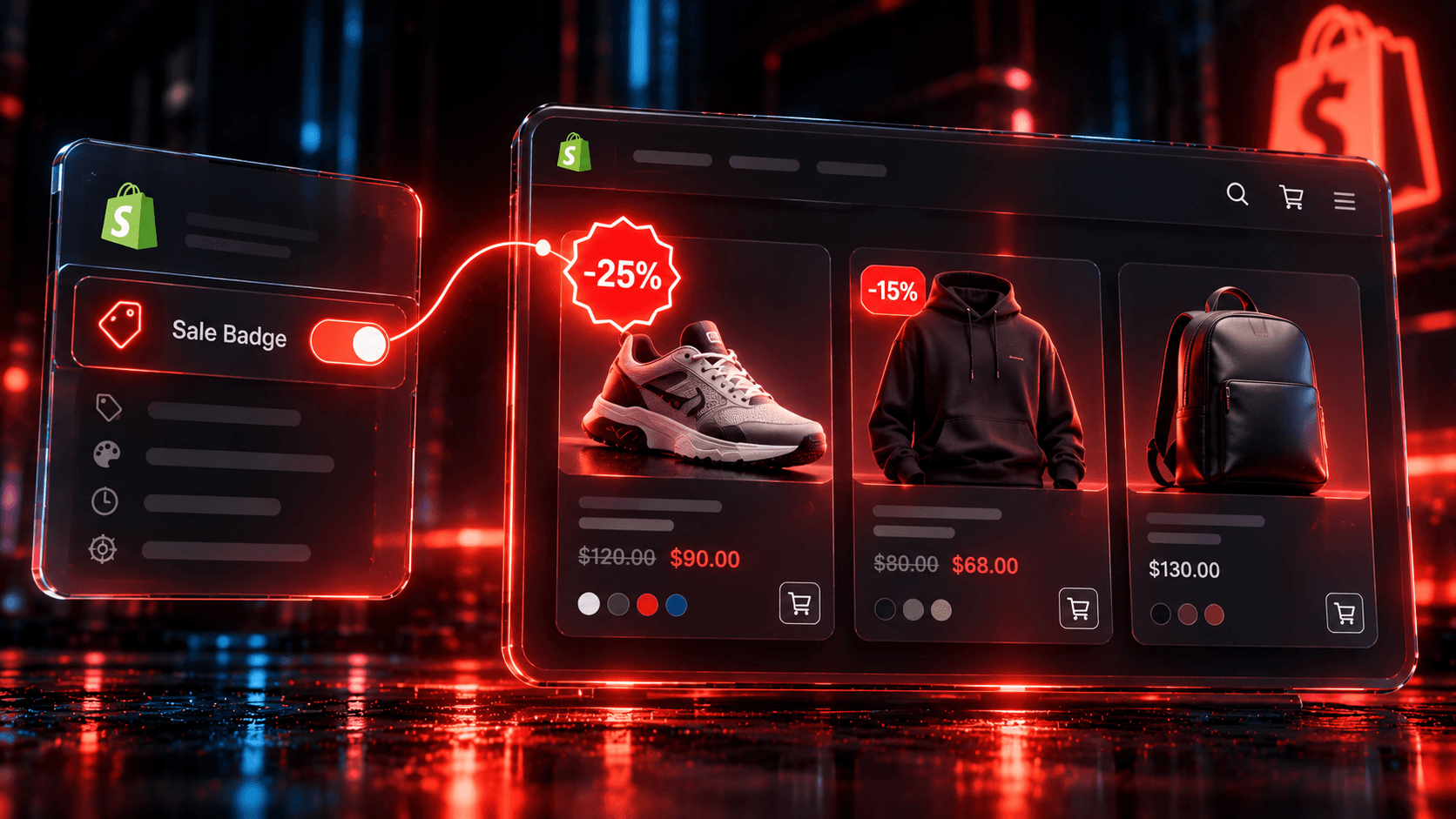
Many themes show a basic "Sale" label when a product has a compare-at price. That works for permanent markdowns, but it shows nothing for automatic discounts and campaign pricing, and it cannot say how much the shopper saves.
A badge from the app that runs the discount can. Because it reads the live campaign, it can show the percentage or amount actually applied, update when you change the discount, and disappear the moment the campaign ends. No one has to edit a label rule after the sale.
How to add sale badges with Discount Prime
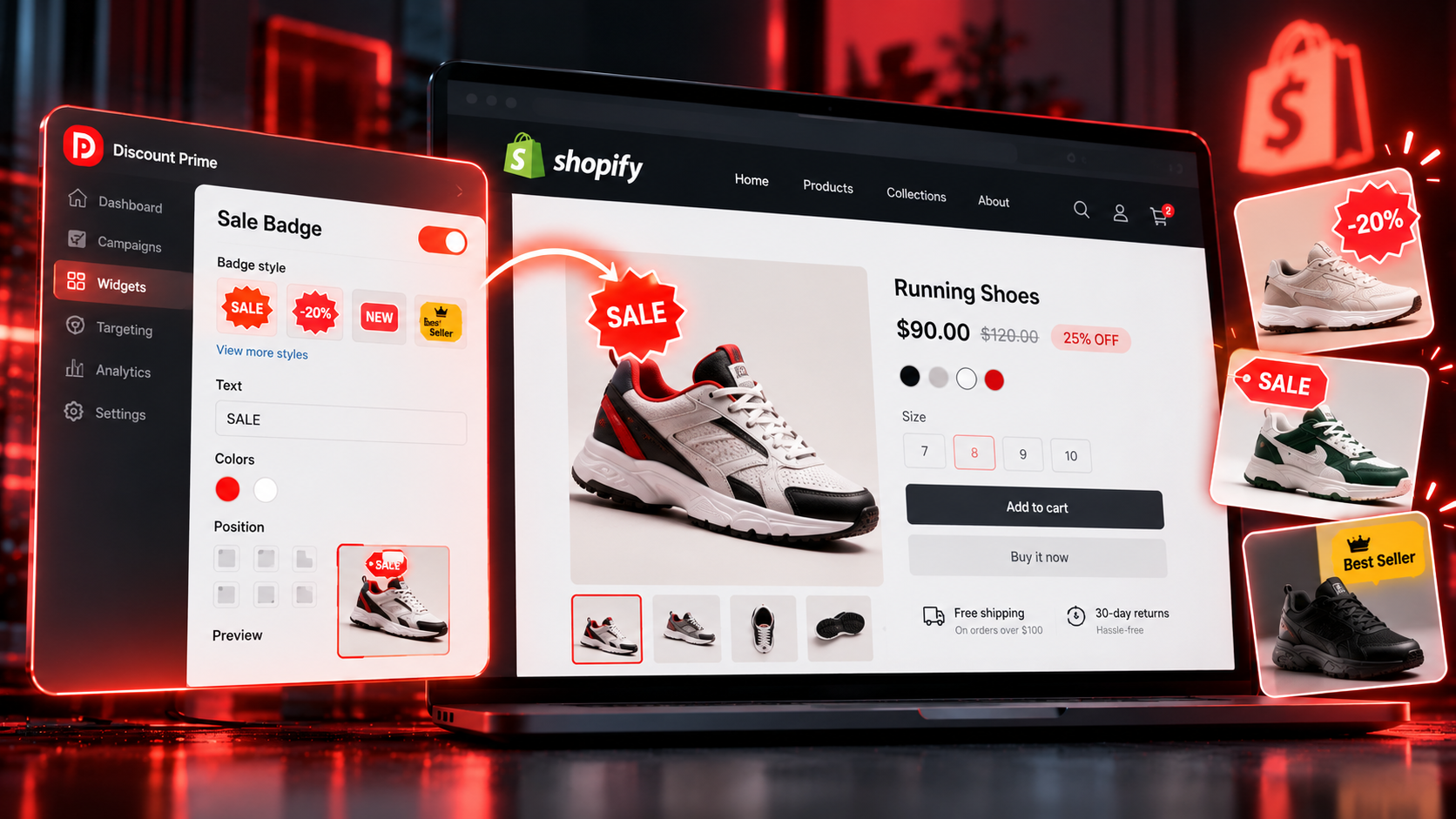
Install Discount Prime from the Shopify App Store. The Starter plan is free.
Turn on the app embed. In the Shopify admin, open Online Store, then Themes, then Customize, and switch on the Discount Prime app embed. There is no theme code to edit.
Create or open a campaign, such as a flat discount on a collection.
Turn on the sale badge in the widget settings. It picks up your brand colors, and you can set custom badge text per campaign, for example "Bundle deal" instead of "Sale".
Translate the badge text if you sell in more than one language. Each language your store publishes appears in the widget settings, and untranslated text falls back to your default. See how to translate discount widgets.
Optionally add the stock badge for low-inventory products.
When the campaign ends, the badge goes with it.
The sale badge is one of 13 storefront widgets in Discount Prime, alongside the countdown timer, quantity/value table and free shipping progress bar. For a wider look at where each kind of discount message belongs, see discount display settings: where and how to show the deal.