The short answer
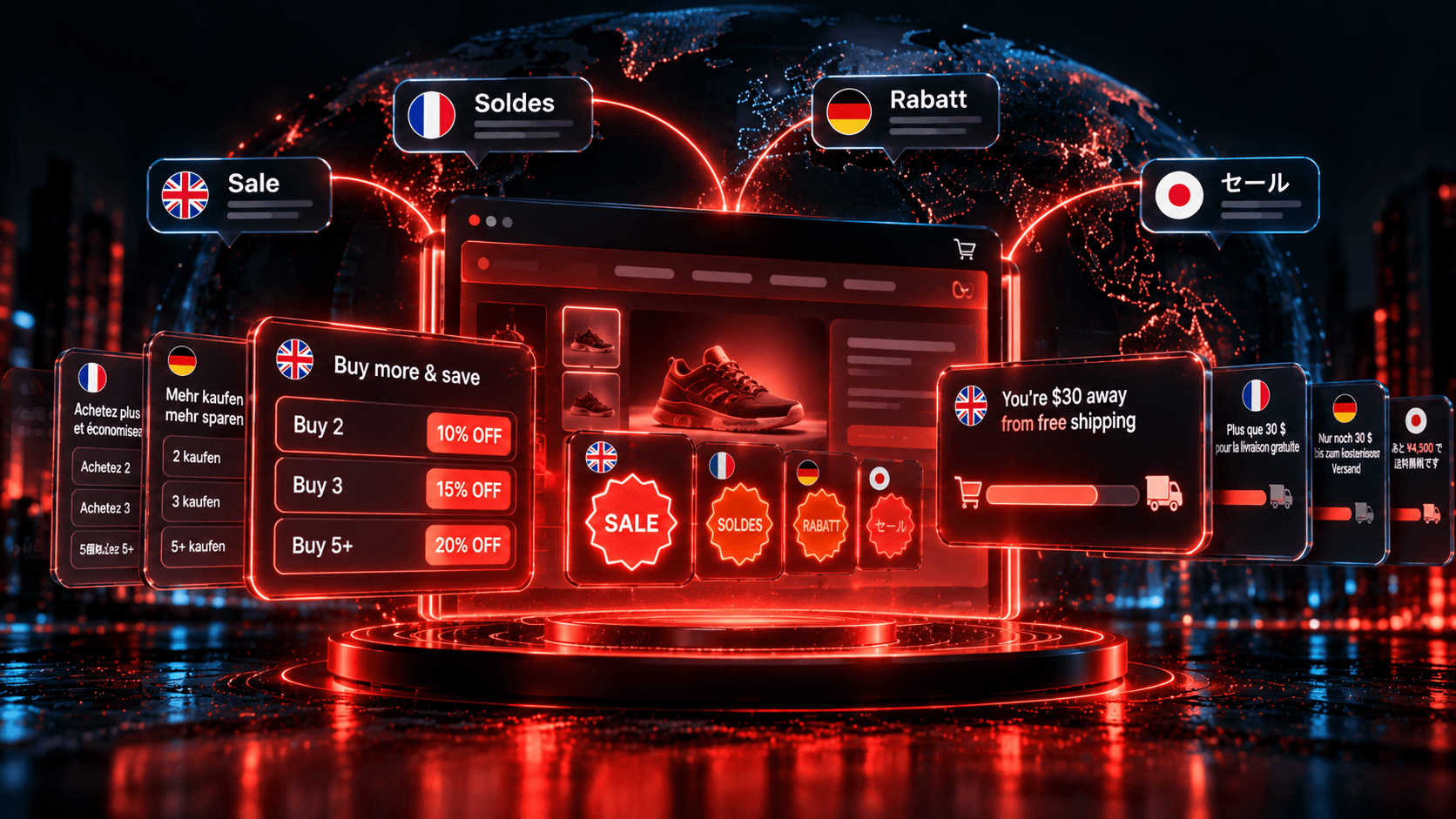
If your pricing table, sale badge or progress bar stays in English while the rest of the page switches language, the widget's text is almost certainly stored inside the discount app, where your store-wide translation app does not reach it. The fix is to translate the store with a translation app and translate the discount widgets inside the discount app.
Translation apps are complementary here, not competitors:
| App | Rating · Reviews | Price | What it covers | Limit for discount widgets |
|---|---|---|---|---|
| Discount Prime | 5.0 · 20 | Translation on every plan, including free; editing translations from $9.90/mo | Text of all 13 widgets set per language inside the app | Translates its own widgets, not your whole store |
| Weglot: AI Translation & SEO | 4.5 · 828 | Free for 1 language and 2,000 words; $17 to $87/mo | Full-site translation, 110+ languages, strong SEO | Word caps; app widget coverage depends on the plan and how the widget renders |
| Transcy: AI Language Translate | 4.4 · 2,529 | Free for 1 language and 1 currency; $14.90 to $69/mo | 147+ languages, currency switcher, Shopify Markets integration | Monthly AI token caps |
| LangShop AI Language Translate | 4.5 · 472 | Free for 1 language and 50 products; $10 to $75/mo | Multi-currency, Shopify Markets integration | Third-party app text translation from $40/mo |
| Discounty / Kite | 4.9 | Widget translation from about $29/mo | Translate their own widgets | Paid feature in both |
Ratings, reviews and prices from each app's Shopify App Store listing, as of October 2026. Disclosure: Discount Prime is our app.
Recommended setup: use a translation app for the store and Discount Prime's built-in translation for discount widgets, so pricing tables, badges and progress bars switch language with the rest of the page.
Why Weglot or Langify often miss app widgets
Store-wide translation apps, and Shopify's own Translate & Adapt, translate the content Shopify exposes to them: your theme's text, products, collections, pages and navigation. A discount widget is different. Its text, such as "Buy 3, get 10% off", "on each" or "You're $12 away from free shipping", lives in the discount app's own settings, and the widget usually draws it onto the page after the page has loaded.
That leaves a translation app three ways to fail:
- It never sees the text, because the text is not part of the store content it translates.
- It sees the text too late, because the widget appears after the translation has run. Some apps can catch late-loading text, but often only after you configure it, and sometimes only on higher plans.
- It translates the text wrongly, because "on each" or "Off" out of context is hard to translate well. A pricing table that says the equivalent of "Out" instead of "Off" is worse than one left in English.
There is a fourth problem specific to discounts: widget text often contains numbers that change, such as amounts left to a threshold. A translation memory keyed on the exact string "You're $12 away" has nothing to match when the cart changes to $9.
This is why we wrote, in why storefront apps should speak your customers' language, that widget translation belongs inside the app that renders the widget.
Step by step: translating Discount Prime's widgets
1. Publish your languages in Shopify
In the Shopify admin, go to Settings, then Languages, and add and publish every language you sell in. Discount Prime reads this list directly, so there is no separate language setup in the app.
2. Open a widget and pick a language
Open any widget in Discount Prime: the quantity/value table, sale badge, free shipping progress bar, discount progress bar, saving on cart, countdown timer, stock badge, BOGO popup, floating button, or the Product Bundle, Cross-sell, Free Gift and Upsell widgets. When your store has more than one published language, a language selector appears in the widget's settings.
3. Type the text for each language
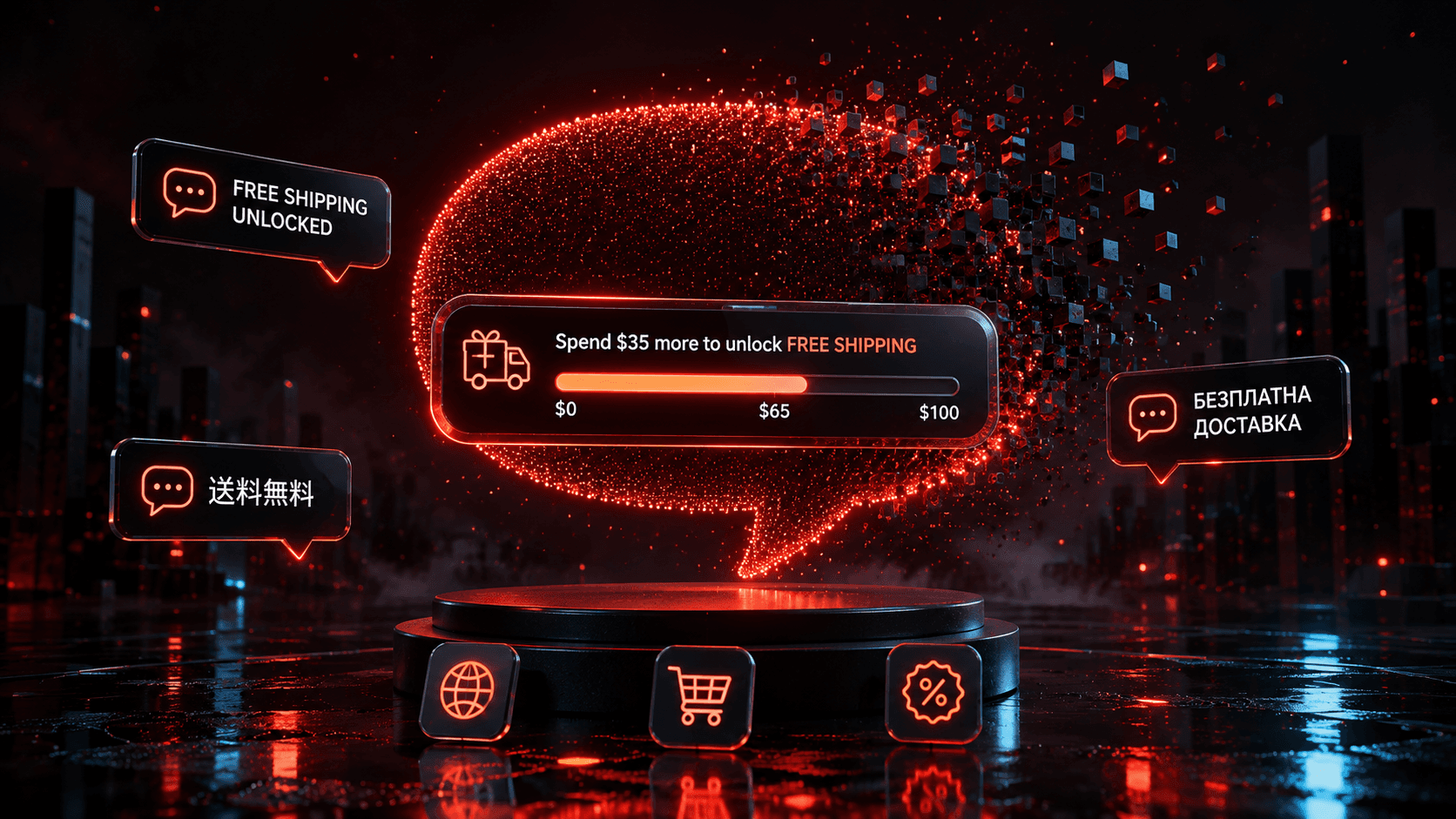
Switch to a language and fill in each text field. For a pricing table, that is the title and the Buy, Get, Off, "on each" and new-price labels. For a sale badge, the badge text and any custom per-campaign text. For a progress bar, the starting, in-progress and goal-reached messages.
4. Preview, then save
Check the preview in each language. Untranslated fields fall back to your default text, so nothing renders blank, and the selector flags languages with missing translations. Each language also has a reset-to-default option.
5. Check the live storefront
Switch your storefront to each language and read every widget on a product page and in the cart. Pay attention to length: German and French run longer than English, so a badge or button that fits in English may wrap. Japanese has no spaces between words, so check where lines break on a narrow screen.
6. Keep your translation app for everything else
Leave Weglot, Transcy, LangShop or Translate & Adapt in charge of the theme, products and pages. If your translation app tries to translate the widget text too, exclude the widget from it so the two do not overwrite each other.
A word on writing the translations
Machine translation is a good first draft, not a final one. Widget text is short, appears on every product page, and shoppers read it as your words, not the app's. Have a fluent speaker check it, or at least read it in place on the live page. We learned how much a single wrong letter can cost, and wrote about it in support standards across languages and time zones.
Where to go next
- See how translation works across all 13 storefront widgets.
- Read the full widget translations feature page.
- Install Discount Prime from the Shopify App Store. Widgets are translated on every plan, including the free one.
- Selling in several countries? Compare apps in best Shopify discount widgets for Shopify Markets.